Inbox
Every chat from every channel in one inbox — with a switch that lets you take over from the bot whenever you want to answer someone yourself.
What this tab is for
Facebook, Instagram, WhatsApp and your website all arrive here. You watch the bot work, and step in whenever you want to.
It refreshes on its own — a new message appears without you pressing anything.
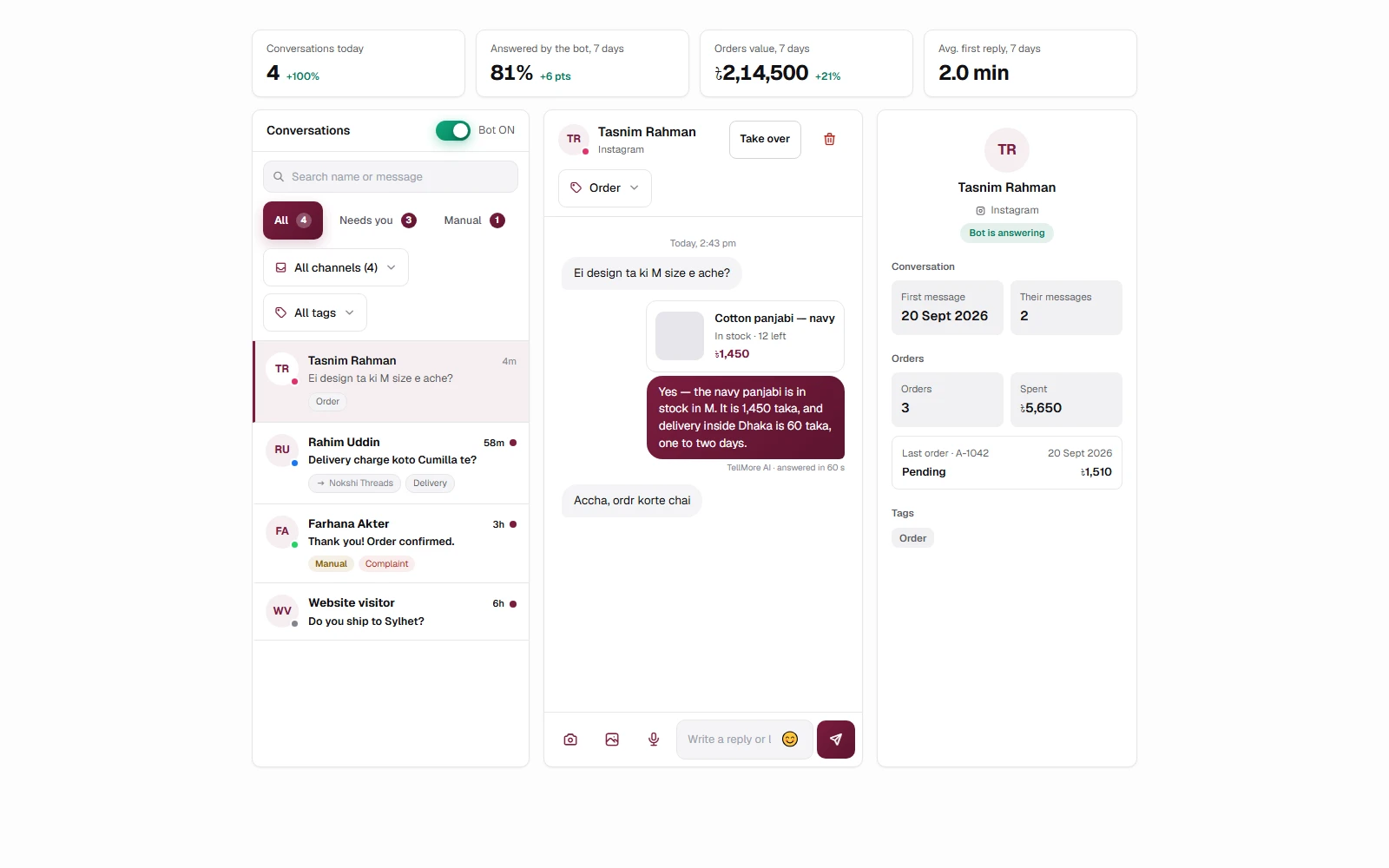
The four numbers
| Card | What it shows |
|---|---|
| Conversations today | How many different people wrote to you today, and the change against yesterday |
| Answered by the bot | The share of the last 7 days' conversations the bot finished on its own — the same figure Analytics shows |
| Orders value (shops) · Bookings (agencies) | The last 7 days, against the week before |
| Avg. first reply | How long a customer typically waited for the bot's first reply this week, measured from their message to the bot's bubble. Lower is better, so a fall shows green |
The two Bot switches
This is the most important thing on the tab, and there are two of them. They do different jobs:
| Switch | Where | What it does |
|---|---|---|
| Bot ON / Bot OFF | Top of the chat list | The whole account. Off, the bot stops replying on every channel and every conversation |
| Bot replying · Take over | Top of an open chat | This one person only. Press Take over and you answer; Hand back to bot and it resumes. Everyone else is untouched |
Both switches show Loading… for a moment after the tab opens. That is deliberate — showing a guess and then correcting it would look like your setting had changed by itself.
Finding a conversation
| Tool | Use it to |
|---|---|
| Search | Look inside names and message text at once |
| Channel dropdown | Show only one platform — and if you have several Pages, only one Page |
| Tag dropdown | Show only conversations carrying a tag, with a count beside each |
| All · Needs you · Manual | The three buttons under the search box. Needs you shows the chats waiting on a person: someone asked for one, a complaint was tagged, or the customer wrote and you have not opened it since; Manual shows only the chats you have taken over from the bot. The small number on each is how many there are |
When a filter matches nothing you get Clear filters, so you never have to remember which one you left on.
The customer panel
On a wide screen — a laptop or a desktop monitor — a third column opens on the right of the chat. It shows who you are talking to without leaving the conversation: their name and channel, whether the bot or you is answering, when they first wrote, and how many messages they have sent.
For an online shop it also shows their orders: how many, how much they have spent (cancelled and returned orders are not counted), and their last order with its status. For an agency it shows their bookings, and the next meeting with its Google Meet link if one is coming up.
On a smaller screen or on a phone the panel is hidden so the chat keeps its room. Nothing in it is guessed — it is read from the orders and bookings already in your dashboard.
Reading the list
| What you see | What it means |
|---|---|
| The coloured dot on the avatar | Which channel this chat came in on — blue Messenger, pink Instagram, green WhatsApp, grey website |
| Bold name, bold preview, a red dot | Unread — a customer wrote and you have not looked yet, the way Messenger shows it. Open the chat and it goes back to normal; the next message makes it bold again. A bot reply does not clear it — you have not seen it |
| “2m”, “3h”, “5d” | How long since the last message |
| An amber Manual chip | You have taken over this chat; everything else is the bot's |
| A grey pill with a name | Which of your Pages this landed on (only shown when you have several) |
| A red tag | Your complaint tag — worth opening first |
Answering someone yourself
- 1Open the chat.
- 2Press Take over so the bot does not talk over you.
- 3Type in the box at the bottom and press Enter, or the send button.
- 4When you are finished, press Hand back to bot and it resumes.
Your messages and the bot's sit on the right, the customer's on the left in grey. Anything you sent by hand is marked You underneath; under the bot's reply you see how fast it came — answered in 3 s. The day and time sit above the first message of each day.
When the bot shows a product, the picture appears as a card with the product's name, stock and price, read from your catalogue at that moment.
Photos work the way they do in Messenger. Several sent together — by the customer or by you — appear as one group of small squares rather than a long column, with +N on the last square when there are more than nine. Tap any picture and it opens full screen: arrows, the arrow keys or a swipe move through the group, the counter says which one you are on, the square-with-arrow button opens the original, and Escape, the ✕, a tap outside or your phone's back button closes it.
Replying from Messenger, Business Suite, WhatsApp or Instagram
You do not have to answer from this dashboard. A reply you type in the Messenger app, in Meta Business Suite, in the WhatsApp Business app on your own phone, or in Instagram lands in the chat here within seconds, marked You — exactly as if you had typed it in the box below.
That matters for two reasons. The customer's messages are then counted as answered, so switching the bot back on does not make it answer them a second time. And the bot remembers what you said: a price you quoted by hand is a price it will not contradict later.
Sending more than text
| Button | What it sends |
|---|---|
| Camera | Takes a photo there and then — most useful on a phone |
| Photo | Picks a picture already on your device |
| Microphone | Records a voice message. Press once to start, again to stop and send |
| The smiley | A small set of common emoji |
Deleting a chat
The red bin in the chat header removes the conversation from your dashboard. It does not delete anything from Facebook, Instagram or WhatsApp — the customer still has the thread on their side, and if they write again a fresh conversation appears.
When your plan has ended
The bot stops answering the moment a plan lapses, and the Inbox locks with it: the chats cannot be listed or opened, and you cannot send a reply from the dashboard. The page says so, with a Renew or upgrade button and how many customers have written since.
Nothing is lost. Every message a customer sends while the inbox is locked is still saved. Renew, and all of them are there — including the ones that arrived in between — and the bot picks up again.
On a phone
The list fills the screen; tap a chat to open it and the back button brings you to the list. One back press closes the chat, the next leaves the tab — so you never fall out of the dashboard by accident.