Website widget
The same bot, in a chat bubble on your own website. One line of code, and you decide which addresses are allowed to use it.
What it is
A small chat button that sits in the corner of your website. A visitor clicks it and talks to the same bot that answers your Messenger, Instagram and WhatsApp — it already knows your products, prices and policies, so there is nothing extra to teach it.
Those chats appear in Inbox alongside everything else, and you can take over from the bot exactly the same way.
You can answer a visitor by hand from the Inbox too, with text or a photo. Your reply appears in the chat on their screen within a few seconds while they are still on your website, and a dot on the chat button tells them if the chat was closed. A voice note cannot be sent to a website visitor, so the microphone is hidden in these chats.
Setting it up
The widget lives at the bottom of the Channels tab, in the Website section.
- 1Type your website address — for example
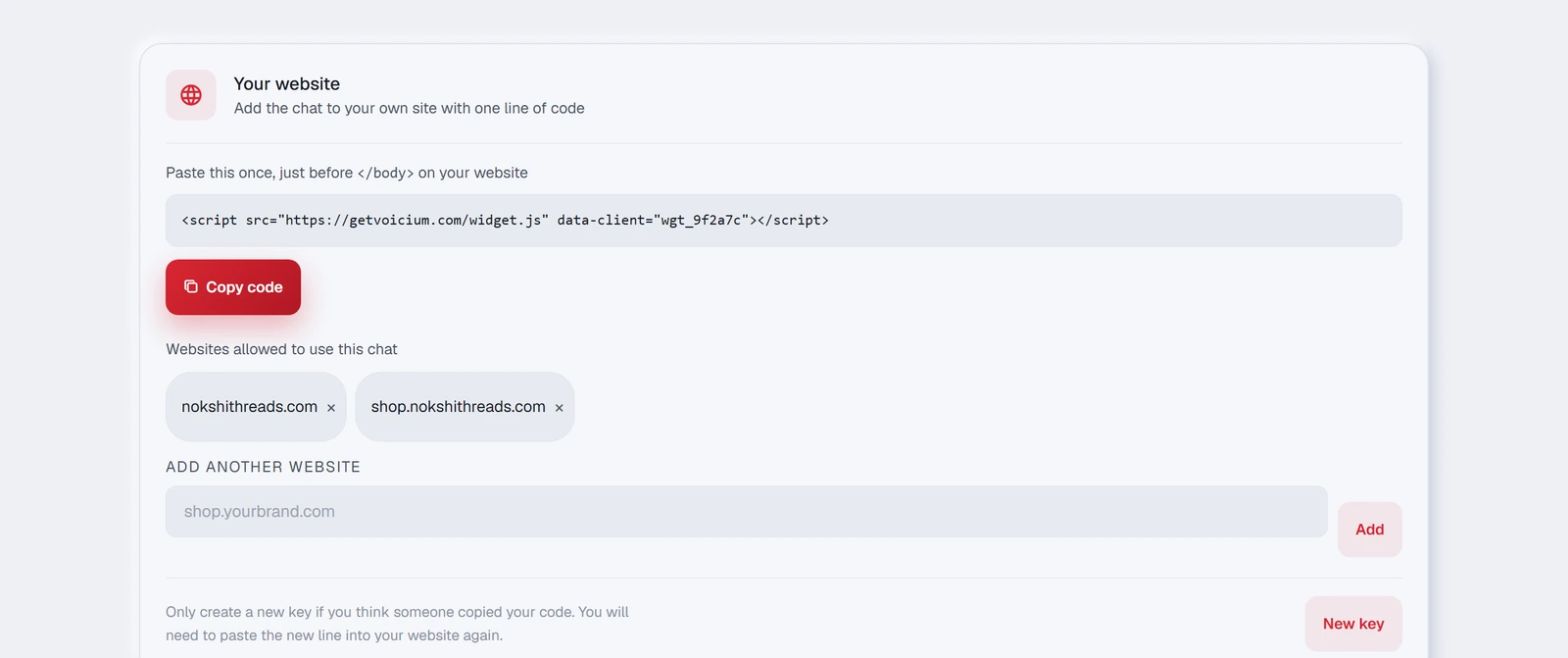
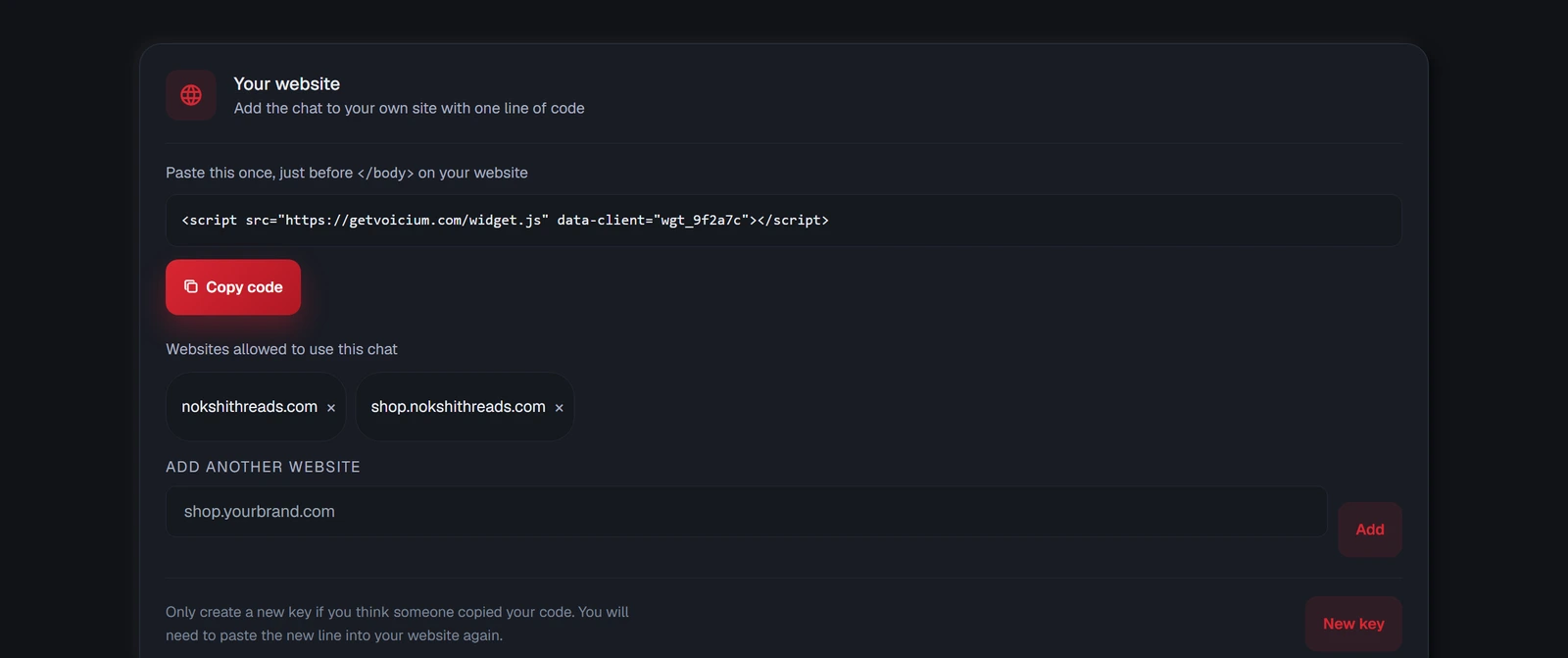
yourshop.com— and press Create widget. - 2Press Copy code. You now have one line on your clipboard.
- 3Paste it into your website, just before the `</body>` tag, on every page where the chat should appear.
- 4Save and reload your site. The chat button appears in the corner.
Which websites are allowed
The chat only loads on addresses you have listed. This is what stops someone copying your code onto their own site and using your bot at your expense.
Under Websites allowed to use this chat you can add more addresses — a second domain, or a subdomain like shop.yourbrand.com — and remove any you no longer use.
Turning it off
The widget row in the Channels tab has the same switch as every other channel. Off, it is paused: the bot stops answering on your website, but visitors can still write, and their messages wait in your Inbox for you to answer by hand — nothing is lost. To take the chat button off your site completely, remove the line of code from your website.